
You have just arrived at a DomusVi establishment and have been given a Netsoins identifier without further explanation. The login screen appears, you enter your credentials, and nothing happens. This blockage affects an increasing number of professionals in EHPADs, often for reasons unrelated to the password itself.
Lockout by the second factor of Netsoins authentication
Most online guides focus on resetting the password. This reflex is no longer sufficient since Netsoins has strengthened the security of logins.
Since 2024-2025, the second factor of authentication blocks more accounts than traditional password errors. A code sent to an old mobile number, an authentication app not registered on the correct phone, or an account never properly initialized: all situations where the “forgot password” form does not resolve anything.
When the security operations center (SOC) locks an account, resetting the password alone does not unlock access. You must go through your establishment’s Netsoins administrator, who can check if a security rule has been triggered and lift the server-side block.
Have you noticed that your colleague logs in without issue using the same browser? The difference often lies in the fact that their second factor was correctly enrolled during their first login. If you skipped this step or changed phones since then, you need to restart the procedure from the beginning with the help of the administrator. A detailed guide allows you to log in to Netsoins Domusvi easily by following each step in order.
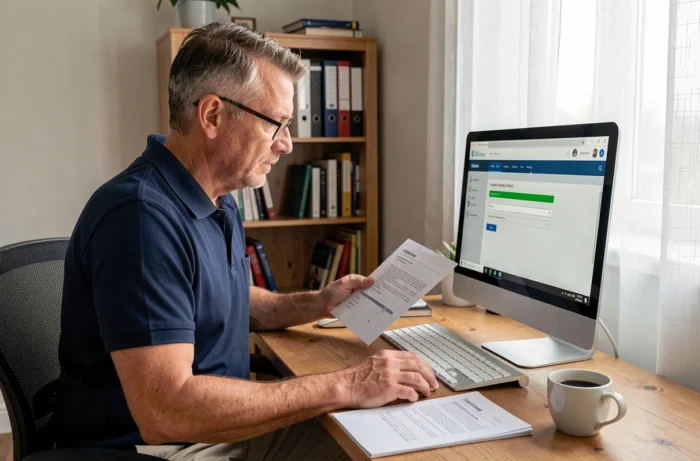
Browser cache and extensions: invisible blocks after Netsoins update
After an update of the Netsoins portal, blank pages or display errors sometimes appear for no apparent reason. The culprit is rarely the server.
The browser cache retains outdated files from the old version of the portal. The browser then displays a mix of old and new code, causing visual malfunctions or preventing the login form from being validated.
Security extensions and ad blockers pose a comparable problem. Some intercept requests sent to the Netsoins server and silently block them. You see no explicit error message, just a page that does not respond.
Quick cleaning procedure
- Clear your browser’s cache and cookies, then restart it before trying to log in again. In Chrome, the shortcut Ctrl+Shift+Delete opens the cleaning menu directly.
- Temporarily disable all extensions (ad blockers, built-in VPNs, antivirus modules). If the connection works afterward, reactivate them one by one to identify the one causing the problem.
- Test with another browser or in private browsing mode. This mode loads the page without any cached files or active extensions, allowing you to quickly isolate the source of the blockage.
If the problem persists after these checks, the issue likely comes from the Netsoins server or the establishment’s network configuration. Report it to technical support, specifying the browser used, the message displayed, and the exact time of the blockage.
Netsoins login URL: finding the correct address for your DomusVi residence
Each DomusVi establishment has its own Netsoins login URL. Typing “netsoins login” into a search engine often leads to generic pages that do not correspond to your residence.
The exact address of the portal is provided by the establishment, usually during onboarding or by the health manager. It contains an identifier specific to the structure. If you can no longer find it, ask your Netsoins administrator rather than testing URLs found online.
A common trap: saving the URL in your favorites, only to find months later that the link no longer works. Netsoins portals may migrate to new addresses during major updates. Check with your establishment if the URL has changed before concluding that there is a malfunction.
Difference between c-netsoins and e-netsoins
Some establishments use two distinct interfaces. The “c-netsoins” version is generally intended for healthcare staff for daily resident file management. The “e-netsoins” version may be reserved for other profiles or complementary functions. Getting the wrong portal prevents login even with valid credentials. Check with your contact person which portal corresponds to your access profile.

Contacting Netsoins support: what to prepare before the call
Calling support without specific information significantly lengthens resolution time. A few minutes of preparation saves time on both sides.
- Note the exact error message displayed on the screen (or take a screenshot). “It doesn’t work” does not allow support to diagnose the problem.
- Specify the browser and its version, the operating system (Windows, macOS, tablet), and whether you are connected to the establishment’s Wi-Fi network or using 4G.
- Indicate if other colleagues are experiencing the same problem at the same time. A collective blockage points to a server or network failure, not an individual account issue.
- Mention any recent actions: password change, new phone, browser update. These details help the technician target the cause.
Support processes requests faster when accompanied by a screenshot and a chronological description of the problem. Also, keep your Netsoins identifier and the exact name of your establishment handy.
The majority of Netsoins blockages in DomusVi establishments are resolved without heavy technical intervention. A cleared cache, a correctly enrolled second factor, or simply the correct URL is sufficient in most cases. When the problem exceeds these checks, the Netsoins administrator at your residence remains the first point of contact, even before the publisher’s support.